

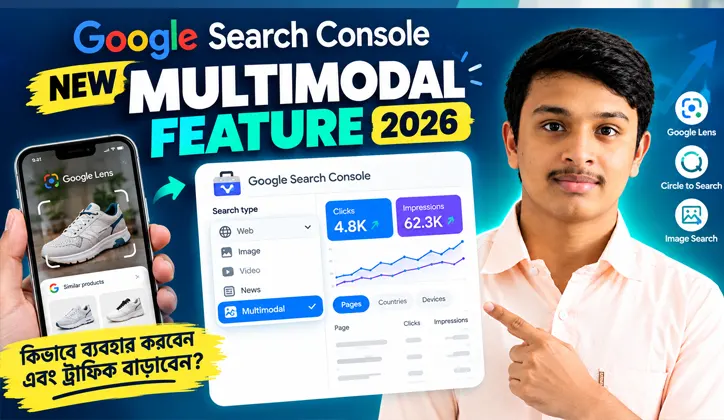
The Google Search Console Multimodal filter (Performance → Search results → Search type → Web: multimodal) shows clicks, impressions and CTR for searches that start with an image: Google Lens, Circle to Search, image uploads to Google Search, and Chrome’s “Search this image.” It has no query data, it is separate from your text-based numbers, and the same data also appears in the Generative AI features report.
People no longer only type into Google. They point a camera at a sofa, circle a jacket on their phone screen, or drop a screenshot into the search bar. On September 24, 2026, Google added a Multimodal option to Search Console so site owners can finally see this activity.
This guide explains where to find it, what it does and does not show, how to turn the data into a page-level audit, and what to tell clients who ask, “Why are there no keywords?”
What Is the Google Search Console Multimodal Filter?
The Multimodal filter is a reporting option under the Web search type. It separates searches triggered by an image, photo or screenshot from normal text-based web searches.
It covers four entry points:
| Entry point | What the user does |
|---|---|
| Google Lens | Takes a photo or selects an image to find similar products, places or information |
| Circle to Search (Android) | Circles or selects something on the screen |
| Image upload to Google Search | Uploads a picture instead of typing |
| Chrome “Search this image” | Right-clicks an image in Chrome and searches it |
Two details matter most:
- It is new data. Google’s John Mueller clarified that multimodal traffic was not included in earlier reports. This is not old traffic moved into a new bucket, so some totals can look different from before.
- It is a reporting feature, not a ranking feature. Selecting the filter does not improve rankings or bring extra traffic. It only shows what is already happening.
How to Find the Multimodal Filter in Search Console
- Open Google Search Console and select the correct property.
- Go to Performance → Search results.
- Click the Search type filter.
- Under Web, choose Multimodal (you will see it next to Text-based) and apply it.
- Set a date range that starts in mid-September 2026 or later. Earlier dates will be empty because the data starts around then.
Under the chart, use the Pages, Countries, Devices and Dates tabs. You can export the data with the Export button.
The same multimodal data also appears in the Generative AI features report, which shows impressions from AI Overviews and AI Mode rather than clicks. Labels may differ slightly in your account, and Google rolls features out gradually, so you will only see data if your site actually receives this kind of traffic.
What the Multimodal Report Shows and Does Not Show
| You can see | You cannot see |
|---|---|
| Clicks, impressions, CTR and position | The query. The Queries tab has no data for this search type |
| Which pages get visibility | Which exact image triggered a visit |
| Countries and devices | A split between Lens, Circle to Search, uploads and Chrome |
| Trends by date | Combined text and multimodal data in one view |
A few practical consequences:
- Only one search type at a time. To compare, use Search type → Compare and select Web (text-based) against Web (multimodal).
- Export weekly. Early reports said the Search Analytics API did not list multimodal at launch, and Google has not confirmed API support in its announcement. Until that changes, save an export of the interface data with the date in the file name.
- Do not expect per-image data. The Pages report points you to a URL, not to the photo that caused the visit.
A 20-Minute Multimodal Audit You Can Repeat Every Month
The data is limited, so the value comes from what you do with the pages it surfaces.
Step 1: Export and save a baseline
Export the Pages tab for Web: multimodal. Name it with the date, for example multimodal-pages-2026-10-14.csv. In three months, this baseline is what lets you say whether anything improved.
Step 2: Tag every page by type
Label each URL as product, category, service, guide, location page or other. Patterns usually appear fast. If almost every URL is a product page, your visual search value sits in your product photography.
Step 3: Compare with text-based performance
Use the Compare view and look at the same pages in both search types. A page with strong text-based clicks but weak multimodal impressions may need better images. A page that appears mainly through multimodal searches deserves extra care, because it is already visible to image searchers.
Step 4: Check countries and devices
Multimodal searches often start on phones. If the Devices tab confirms this, check those pages on mobile first: image loading, layout and speed.
Step 5: Audit the top 10 pages
For each page, check the image set, page context, technical access and structured data using the checklist below. Record what you changed and the date.
Image SEO Checklist for Multimodal Search
Google’s own guidance says that if you already follow its image SEO best practices, you are already optimizing for its AI search features. There is no secret multimodal markup. Focus on the basics and do them well.
1. Use original, accurate images. Show the real product, the real project, the real location. Stock photos look like everyone else’s. Add useful angles for products: close-ups, size reference, materials, in-use shots.
2. Put the image next to the text that explains it. An image placed beside a clear heading and a relevant paragraph gives Google more context than one dropped at the bottom of a page. If you want a repeatable process for this, see my content layout optimization process.
3. Make the page match the image. The image, the product or service name, the description and any structured data should all describe the same thing. This is the same entity-consistency principle behind semantic SEO: when your signals agree, Google has less to guess.
4. Write descriptive file names. green-remote-control-spinosaurus-toy.jpg is better than IMG_4821.jpg. Do not stuff keywords, and do not bulk-rename every old file without a reason.
5. Write honest alt text. Describe what is in the image in plain language: Green remote-control Spinosaurus toy with movable tail. Use an empty alt attribute for purely decorative images.
6. Check technical access. Make sure Googlebot can crawl the page, the page is indexable, images are not blocked by robots.txt, the page returns the right HTTP status, and images are not slowing the page down. Use URL Inspection for indexing checks. Indexing is never guaranteed for every image.
7. Use structured data where it fits. For product pages, accurate Product markup helps Google understand price and availability. Google says structured data is not required for AI search features and no special markup exists for them, so treat it as part of a normal SEO setup, not a multimodal trick.
8. Match the search intent of the page. Someone who photographs a product usually wants to identify it, find where to buy it, or compare similar items. Make sure the page answers that quickly. See search intent optimization for how to map page types to intent.
Which Businesses Should Pay Attention?
Ecommerce stores
Product pages are the most obvious place to look. Check whether your top multimodal pages have clean main images, several angles, accurate titles and complete product details. Google also notes that Merchant Center feeds help products appear in AI responses, so keep feed data consistent with your product pages. If you want help with product-page and category-page optimization, see my ecommerce SEO service.
Local and service businesses
Think of a homeowner who photographs a finished driveway, a bathroom or a carpentry project and searches for similar work. Genuine project photos on your service pages, and accurate photos on your Google Business Profile, support this behavior. Google also lists Business Profiles among the ways local businesses show up in AI responses. Start with my Google Business Profile optimization checklist, review your category choices, and read the full Google Business Profile optimization guide. If people still cannot find you, check why your business is not showing on Google Maps. For ongoing help, see my local SEO service.
Publishers and guide sites
Original photographs, diagrams and step-by-step visuals can bring image searchers to your guides. Check whether your multimodal pages are the ones with your strongest original visuals, then improve the weaker ones.
What Not to Do
- Do not rebuild your strategy around this filter. It launched weeks ago, and the numbers may be small.
- Do not promise clients a traffic jump. The report measures visibility. It does not create it.
- Do not chase AI hacks. Google says you can ignore llms.txt files, chopping content into tiny “chunks,” and seeking fake mentions for its search features.
- Do not blame the new filter for traffic changes. Seasonality, demand and other SEO changes still matter.
- Do not rename every image. Prioritize pages that already show multimodal impressions.
Multimodal Tracking Template
Copy this into a spreadsheet:
| Page URL | Page type | Clicks | Impressions | CTR | Date range | Audit findings | Changes made | Next review |
|---|---|---|---|---|---|---|---|---|
Compare equal date ranges, record each change with its date, and allow time for Google to recrawl before judging results.
What to Tell Clients Who Ask About the New Filter
A short script you can reuse:
“Google now reports searches that start with an image, like Lens and Circle to Search, in a separate view. Because there is no typed text, Google does not show keywords for this traffic. We are saving a baseline now and will review which pages get image-based visibility.”
Also mention that totals in some reports may look different because this is new data that was not counted before.
What If the Report Shows Zero Data?
Zero does not automatically mean something is wrong. Work through this list:
- Confirm the path: Search results → Search type → Web → Multimodal.
- Use a date range that starts after mid-September 2026.
- Check that you selected the right property.
- Look at whether your site has visual content people might search by image.
- Review indexing, crawl access and image quality on your key pages.
- Record the result and check again in a few weeks.
A site with mostly text and no visual subject matter may simply have little multimodal traffic.
FAQs about Google Search Console Multimodal Filter
What is the Google Search Console Multimodal filter?
It is a Search type option under Web that shows performance for searches that start with an image, photo or screenshot, including Google Lens, Circle to Search, image uploads and Chrome’s “Search this image.”
When did Google introduce it?
Google announced web multimodal Search performance reporting on September 24, 2026, with a global rollout.
Was multimodal traffic already in my Search Console numbers?
No. Google’s John Mueller said this data was not included in earlier reports, so it is new data rather than traffic moved from another report.
Why can’t I see queries for multimodal traffic?
These searches mostly use images, not typed text, so there is no query to report. The Queries tab has no data for this filter.
Can I separate Google Lens from Circle to Search?
No. Google groups the four entry points together, and the report does not give a separate tally for each.
Can I get multimodal data through the Search Console API?
Early reports at launch said the Search Analytics API did not list multimodal yet, and Google’s announcement does not mention API support. Use the Export button and save files regularly.
Where does Google Lens traffic appear: Image or Multimodal?
One early guide reports that Lens visits usually appear under multimodal rather than the Image search type. Check this against your own property, because the data is new.
Does alt text or Product schema guarantee multimodal visibility?
No. They help Google understand a page, but nothing guarantees that a page will appear for a particular image search.
Final Thoughts
The Multimodal filter gives you something search marketers did not have before: evidence of which pages people reach after searching with a picture. The smart move is not to chase a trend. Export the data, tag the pages, compare them with your text-based results, and improve the images and context on the pages that already show up.
If you want a second pair of eyes on your image and page setup, explore my SEO services, see real work in my case studies, or contact me. You can also read more about me. For keyword-side planning, see my semantic keyword research guide.
About the author: Mahabul Islam is the founder of Mahabul SEO, an independent SEO consultancy working with clients in the US, UK, Singapore, Ireland and the UAE. He specializes in local SEO, technical SEO, ecommerce SEO, semantic SEO and AI search optimization.
If you want to learn this in practical then watch my full video on GSC Multimodal Filter A-Z
Sources and official resources